
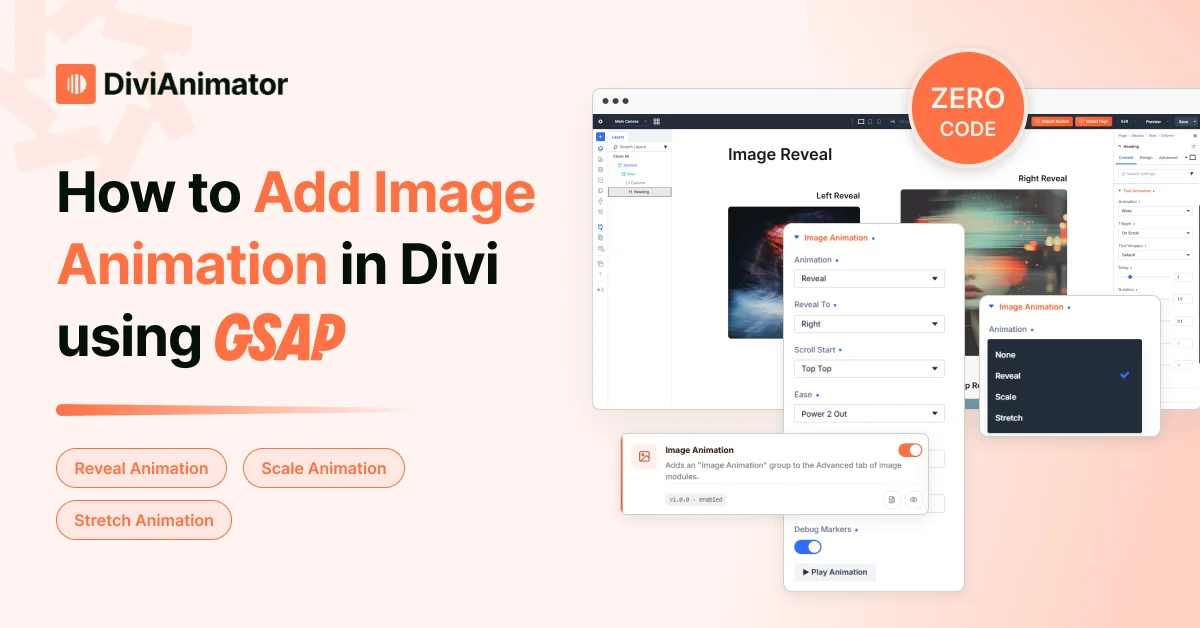
Images carry most of the weight on a modern site. They show the product, set the mood, and prove the work. Yet on most Divi pages they just sit there, fully formed, the moment the section loads.
A little motion changes how they land. Reveal an image as the visitor reaches it and you guide the eye down the page. Scale one into view and it arrives with emphasis. That's what image animation does: it turns a static gallery into something that paces the read and points attention where you want it.
Quick overview
Image animation adds motion to images as they load or scroll into view, so they draw the eye instead of sitting flat. The short version:
- What it is: images that reveal, scale, or stretch into place on scroll or load
- Why use it: highlight products, pace long pages, guide attention to a CTA
- Two ways in Divi: basic effects natively, or GSAP effects visually with DiviAnimator (no code)
- DiviAnimator effect types: Reveal, Scale, Stretch
- Key controls: direction, animation start/end, delay, duration, ease, responsive
- Rule of thumb: animate the images that matter, keep it quick, and compress first
What is image animation?
Image animation is motion applied to an image as it loads or scrolls into view — revealing, scaling, or stretching into place instead of appearing all at once. It's tied to scroll position or page load, so the movement happens exactly when the visitor arrives at the image.
Modern sites use it for a practical reason, not decoration. Motion on an image directs attention, adds depth to a flat layout, and gives long pages a rhythm. Done with restraint, it makes a site feel considered. Overdone, it slows the page and distracts.
Why add image animation in Divi?
Image animation earns its place when it does a job. On a Divi site, that usually means one of these:
- Highlight a product by scaling it into view on a product page or launch.
- Improve storytelling by revealing images in sequence as the reader scrolls a case study.
- Increase engagement with subtle motion that keeps a visitor moving down the page.
- Break up long layouts so a wall of sections gets visual pacing.
- Draw attention to a CTA by animating the image beside it at the decision point.
- Add a premium feel to portfolios, agency sites, and creative studios, where polish is part of the pitch.
The test for each image is simple: does the motion help the visitor, or is it there to look busy? If it's the second, leave the image still.
Ways to add image animation in Divi
There are three honest routes. Here's how they compare.
| DiviAnimator (visual) | Custom CSS | Custom GSAP | |
| Skill needed | None | Some CSS | JavaScript / GSAP |
| Scroll-linked timing | Built-in | Hard, limited | Full, hand-coded |
| Direction & easing control | Visual settings | Manual | Full, in code |
| Smoothness on scroll | GSAP-grade | Varies | GSAP-grade |
| Live preview | Yes | Save and refresh | Save and refresh |
| Best for | Most designers | Simple one-offs | Bespoke effects |
DiviAnimator (recommended for most people). A GSAP animation plugin for Divi that turns image animation into visual controls. You pick a module, choose reveal, scale, or stretch, and adjust the timing and direction from a panel. Powered by GSAP, the motion stays smooth on scroll and gives you timing control that plain CSS can't match — without writing any.
Custom CSS. Fine for a basic hover zoom or a simple fade. It falls short on scroll-linked animation, where you need to tie the effect to how far the visitor has scrolled. CSS wasn't built for that, so you end up fighting it.
Custom GSAP code. The developer route, and the right one for a truly bespoke effect no tool offers. It gives full control at the cost of time, testing, and ongoing maintenance across Divi and plugin updates. For standard reveal, scale, or stretch effects, it's a lot of overhead for a result you can get visually.
How to add image animation with DiviAnimator
The whole process takes a couple of minutes.
Requirements
Before you start:
- A Divi 5 website. DiviAnimator is built for Divi 5 and doesn't run on Divi 4.
- A DiviAnimator license (installing the plugin is Step 1).
- An image or module you want to animate.
- A compressed image file. Animation can't fix a heavy image.
- Comfort with the Divi builder. No code is required at any point.
Step 1 — Install DiviAnimator. Add it to a Divi 5 site and activate it. It's made for Divi 5, so you'll want to be on that version rather than Divi 4. Set it up on staging first if the site is live.
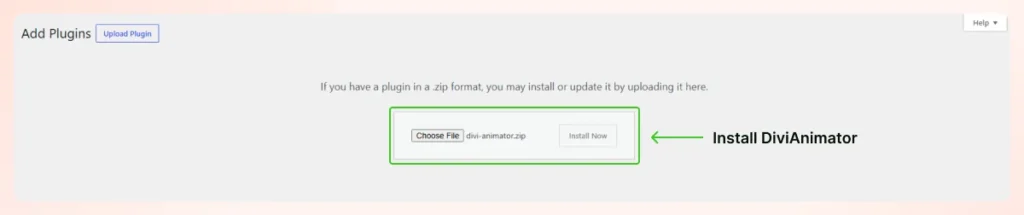
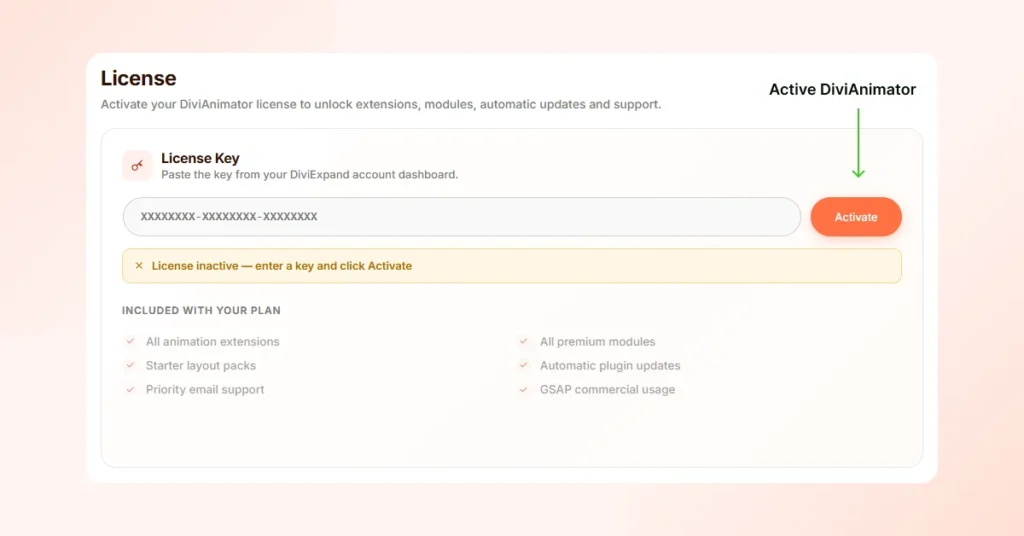
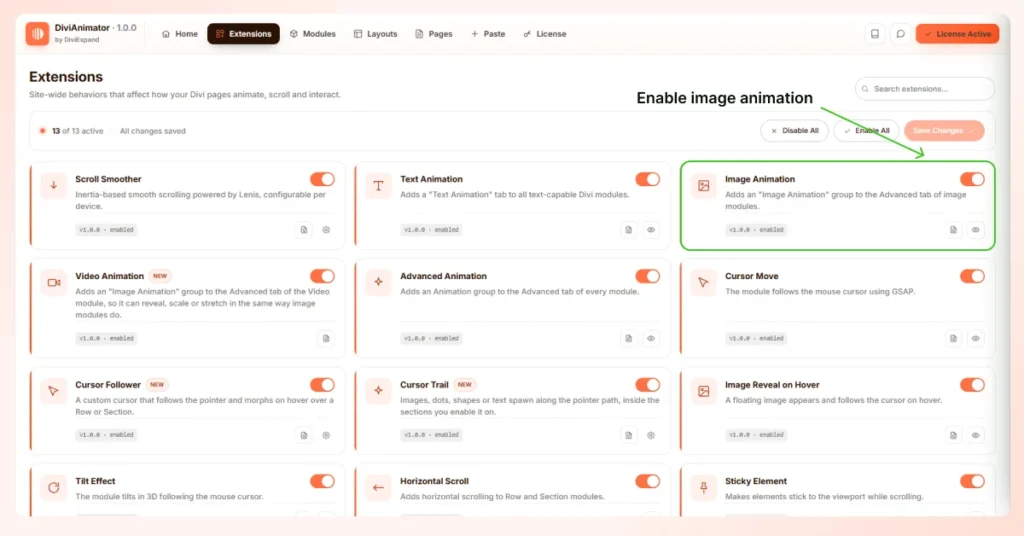
Step 2 — Enable image animation. Turn on the image animation controls in the module you're working with. This is what gives the image its motion settings.
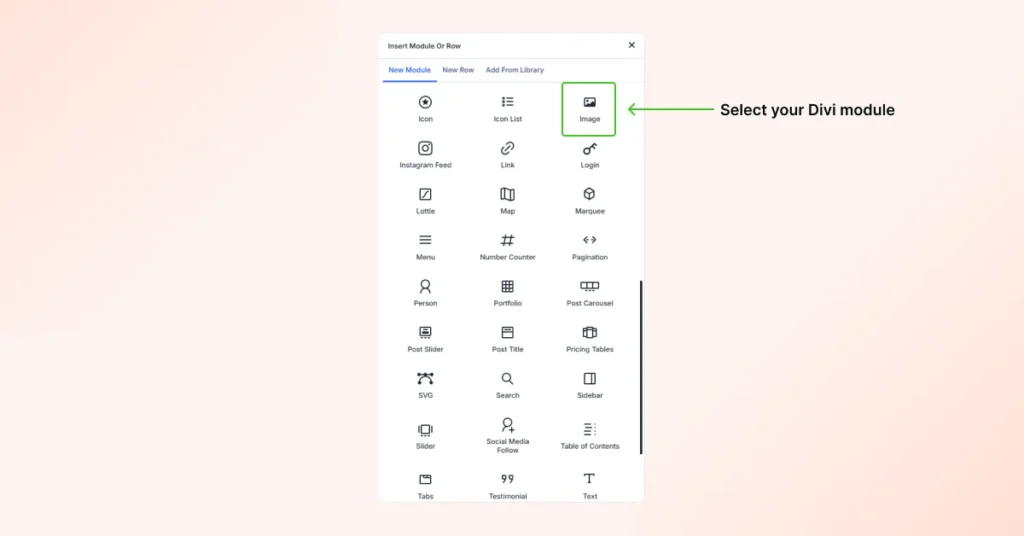
Step 3 — Select your Divi module. Choose the image or module you want to animate. Pick the images that matter — a hero, a product shot, a portfolio piece — rather than every image on the page.
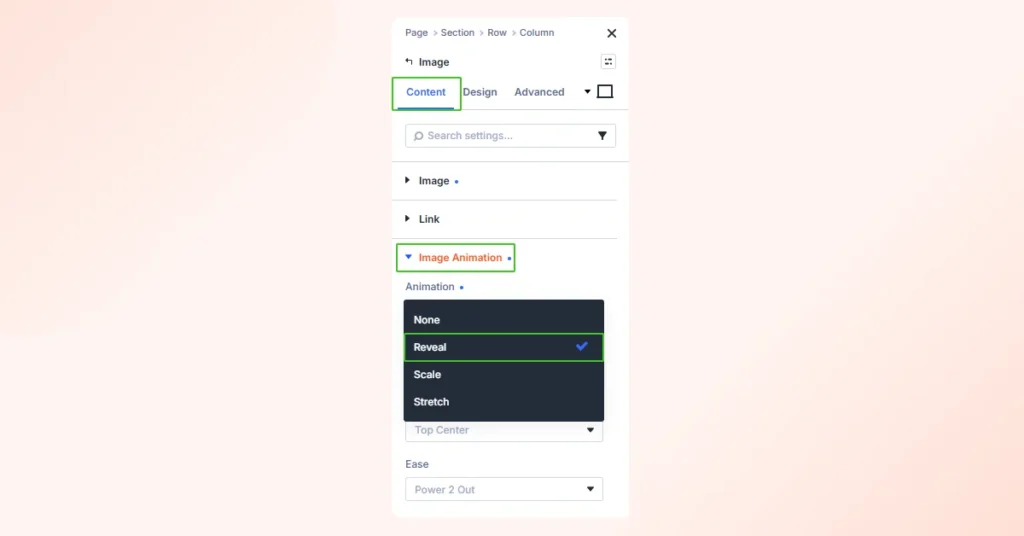
Step 4 — Choose an animation type. Three effects cover most needs:
- Reveal uncovers the image from behind a mask as it scrolls in. It reads as polished and editorial, so it fits portfolios, case studies, and long storytelling pages where images should enter as the reader reaches them.
- Scale grows the image into place from smaller, or eases it down from larger. A scale animation adds emphasis through the size change, which makes it right for product pages, SaaS hero images, and launches where you want the image to arrive with weight.
- Stretch expands the image along an axis into its final shape. A stretch animation brings energy to an entrance, so it suits creative studios and marketing pages that want motion with more character than a plain fade.
Quick tip: Reveal for flow, Scale for emphasis, Stretch for personality.
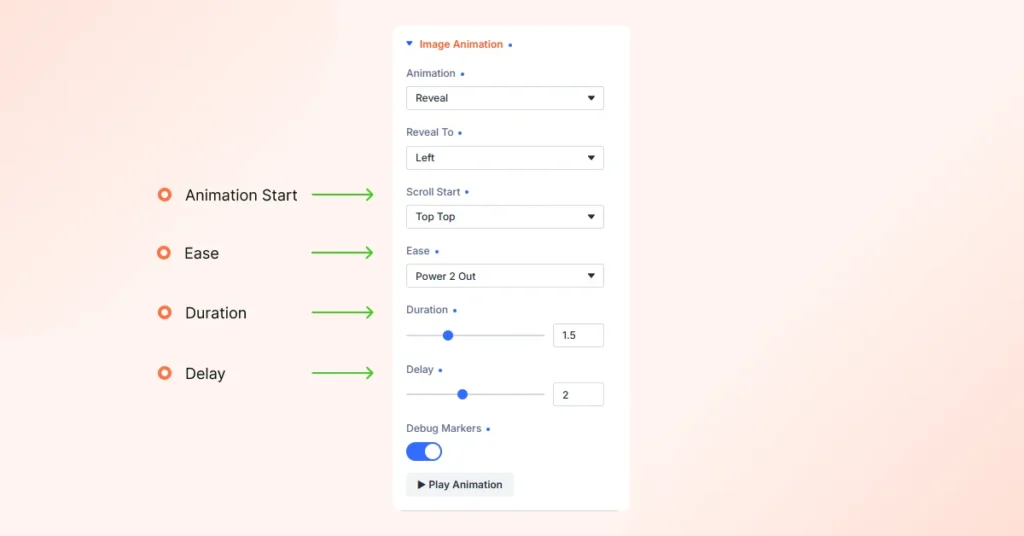
Step 5 — Configure the settings. This is where a rough effect becomes a good one. Each setting changes the feel:
- Animation Direction sets which way the effect runs. Match it to the reading flow so the image enters from a natural direction rather than fighting the eye.
- Animation Start and Animation End mark the scroll positions where the motion begins and finishes. They decide exactly when the image is animating relative to the viewport, which is the heart of a scroll-linked effect that lands at the right moment.
- Ease shapes the acceleration curve, and it's what separates natural motion from mechanical. The presets each have a personality: Power1 to Power4 Out give clean, smooth deceleration (stronger numbers ease harder); Back adds a slight overshoot; Elastic and Bounce are playful; Circ Out is smooth and round. An ease-out preset is the safe, natural default for images.
- Duration sets how long the effect takes. Shorter feels quick and modern; longer feels deliberate.
- Delay holds the start. Use it to stagger a row of images or let the section settle before the motion begins.
- Responsive Controls let you tune or switch off the effect per device. Since most traffic is mobile, treat this as part of the setup so a heavy effect doesn't drag on a phone.
Step 6 — Preview, optimize, publish. Preview in the editor and on a real device. Check that the image still loads fast and that the motion respects a visitor's reduced-motion setting. Compress the image before you publish so the animation isn't carrying an oversized file. When it holds up, publish.
Best practices
- Animate the images that matter, not all of them. Motion works by contrast.
- Keep it quick. Short durations and an ease-out curve read as modern; slow effects feel dated.
- Match direction to flow. The image should enter from the direction the eye is already moving.
- Sequence with delay. A small stagger across a row of images looks more considered than firing them together.
- Compress first. Animation can't fix a heavy image, and a slow load undoes the polish.
- Test on mobile and honor reduced motion. Both protect the people actually visiting.
Common mistakes
- Animating every image. When everything moves, nothing stands out, and the page feels busy.
- Too much movement. Big scales and long stretches call attention to the effect instead of the image.
- Poor timing. Durations that drag or scroll ranges that finish too late make the motion feel off.
- Heavy effects. Stacking animation on many images at once adds weight and can stutter on slower devices.
- Ignoring mobile. An effect that shines on desktop can misbehave on a phone, where most visitors are.
- Unoptimized images. Animating a 2MB image is the fastest way to a slow, janky result.
Why designers choose DiviAnimator
Past the feature list, it comes down to this: GSAP keeps the motion smooth on scroll with timing control CSS can't match, the visual workflow lets the designer set it up without a developer, and it's made for Divi 5 so it works with the builder. It won't decide what should move; it just makes acting on that call quick.
Conclusion
Image animation puts motion where attention already goes: the visuals that carry your page. Reveal for flow, scale for emphasis, stretch for character, used on the images that earn it and kept quick. Open a layout, pick your strongest image, and animate that one first.
FAQ
What is image animation?
Motion applied to an image as it loads or scrolls in, so it reveals, scales, or stretches into place instead of appearing at once.
Is DiviAnimator compatible with Divi 5?
Yes, it's made specifically for Divi 5 and doesn't support Divi 4.
Do image animations affect performance?
Barely, for a light effect on a compressed image; the file size matters far more than the animation, so compress first.
Can I animate WooCommerce product images?
Yes for images placed via Divi modules and Divi-built product pages; for shop-grid thumbnails, apply the effect at the template level.
Should I animate every image?
No. Animating everything cancels the effect and slows the page, so reserve it for hero, product, and key images.
What is Reveal animation?
An effect that uncovers an image from behind a mask as it scrolls in, so it appears revealed rather than faded. Good for portfolios and case studies.
What is the best image animation for landing pages?
Scale for a hero or product image, since the size change adds emphasis; Reveal for images further down the page.
Do I need coding knowledge?
No. The image animation is fully visual — choose the effect, direction, and timing from a panel, no JavaScript.


0 Comments