
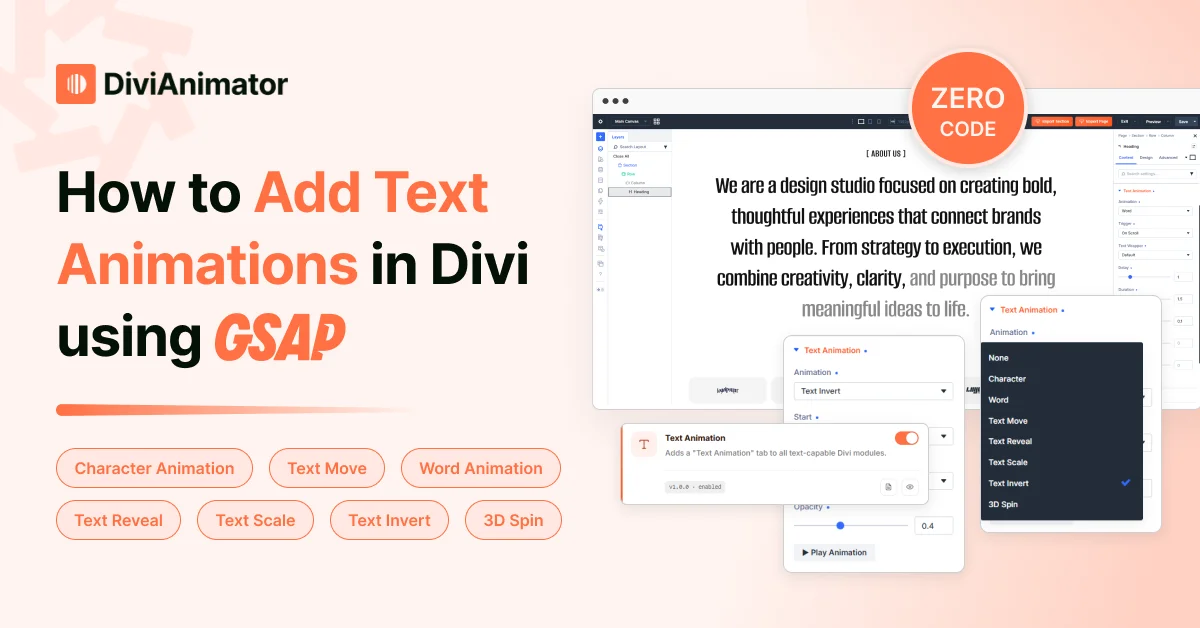
Open any site you'd call well-designed and watch the hero for a second. The headline rarely just shows up — it slides in, scales up, or the letters arrive in sequence. That small piece of motion holds your eye on the first thing the site wants you to read.
On Divi, getting past a basic fade used to mean writing GSAP by hand, so most people didn't bother. This guide covers the text animation effects worth knowing, when to use each, and how to add them in Divi — including the fast, no-code route.
Quick overview
Text animation is any motion applied to headings or text, from a whole line sliding in to a headline animating one character at a time. The short version:
- What it is: motion on type — fade, slide, scale, reveal, invert, spin, or split-text cascades
- Why use it: holds attention on the headline, controls reading pace, sharpens visual hierarchy
- Two ways in Divi: basic effects natively, or advanced GSAP effects visually with DiviAnimator (no JavaScript)
- DiviAnimator effect types: Character, Word, Text Reveal, Text Move, Text Scale, Text Invert, 3D Spin
- Triggers: On Page Load, On Scroll, Play With Scroll, On Hover, On Click
- Key controls: stagger, duration, delay, ease, transform X/Y, responsive breakpoints
- Rule of thumb: animate the one headline that matters per section, and keep it quick
What is text animation?
Text animation is motion applied to headings or text as they load or scroll into view — fading, sliding, scaling, revealing, or animating the text piece by piece. It ranges from moving a whole line as one object to split text, where a line is divided into characters, words, or lines that animate separately. Character effects cascade letter by letter for short hero lines; word effects stay readable for taglines; whole-line effects like reveal or scale suit longer text. Most projects mix them, matched to the job.
Why animate text in Divi?
Because motion on the most important line of a page is a reliable way to hold attention. A visitor decides in a second or two whether to keep reading, and a headline that animates in earns another beat on it. It also sharpens hierarchy: when the headline moves and everything else stays still, you've said look here without touching a font size. On landing pages, portfolios, and product launches, that means longer attention on the message and a clearer path to the call to action. The one condition: it works because it's rare on the page, not because it's everywhere.
Types of text animation in Divi
DiviAnimator's text animation covers seven effects. Two of them (Character and Word) are split text; the rest treat the line as a whole.
| Effect | What it does | Best for |
| Character | Cascades letter by letter | Short hero lines, single words, product names |
| Word | Animates one word at a time | Taglines, medium headlines (readable while moving) |
| Text Reveal | Wipes in from behind a mask | Portfolios, agency intros, case study titles |
| Text Move | Slides in from a direction | Understated entrances almost anywhere |
| Text Scale | Grows or shrinks into place | Big statements, product launch headlines |
| Text Invert | Flips fill or color as it animates | Creative studios, strong visual brands |
| 3D Spin | Rotates letters or words in 3D | Playful accents — use sparingly |
A quick way to choose: the shorter and more important the text, the finer you can split it. Big hero word, go Character. Long subhead, use a whole-line effect like Move or Reveal.
Two ways to add text animation in Divi
Two honest routes, depending on whether you'd rather work in a panel or in code.
| DiviAnimator (visual) | Custom GSAP + JavaScript | |
| Who it's for | Designers, freelancers, agencies | Developers comfortable with GSAP |
| Setup | Toggle text animation on a module | Load GSAP, write a timeline |
| Split text (chars/words/lines) | Handled for you | Wired up manually with SplitText |
| Triggers (scroll, hover, click, load) | Built-in | Coded with ScrollTrigger / listeners |
| Responsive control | Per-breakpoint settings | Manual, in code |
| Live preview | Yes, in the editor | Save, refresh, repeat |
| Maintenance | Updates with the plugin | You maintain it across Divi updates |
Method 1 — DiviAnimator (recommended for most people). A GSAP animation plugin for Divi that turns text animation into visual controls. You select a module, switch on text animation, and choose the effect, trigger, and timing from a panel. The real time-saver is iterating live: you try one effect against another and nudge the timing on the spot, instead of editing a script and reloading to check each change.
Method 2 — Custom GSAP and JavaScript. The developer route. Without the code: load GSAP (plus its SplitText helper for character or word effects), animate the text with a staggered timeline, and connect ScrollTrigger if it should fire on scroll. Then handle the easy-to-forget parts — resetting on resize, keeping the text readable for screen readers, surviving Divi re-renders. It's the most flexible route and right for a bespoke effect, but it's a lot of overhead for the standard ones.
How to add text animation with DiviAnimator
The full workflow takes a couple of minutes once you've done it once.
Requirements
Before you start:
- A Divi 5 website. DiviAnimator is built for Divi 5 and doesn't run on Divi 4.
- A DiviAnimator license (installing the plugin is Step 1).
- A Heading or Text module with the text you want to animate.
- Comfort with the Divi builder. No code is required at any point.
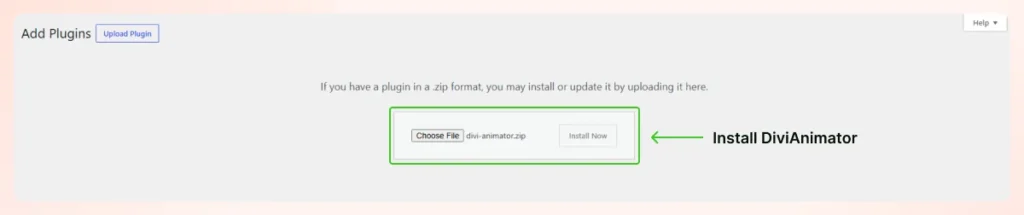
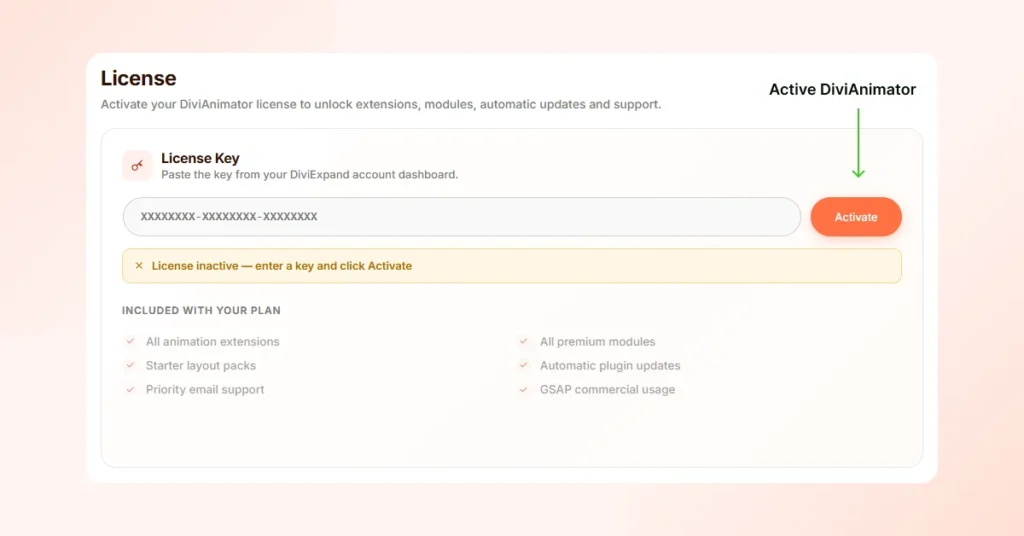
Step 1 — Install DiviAnimator. Add it to a Divi 5 site and activate it. It's made for Divi 5, not Divi 4. Do the first setup on staging if the site is live.
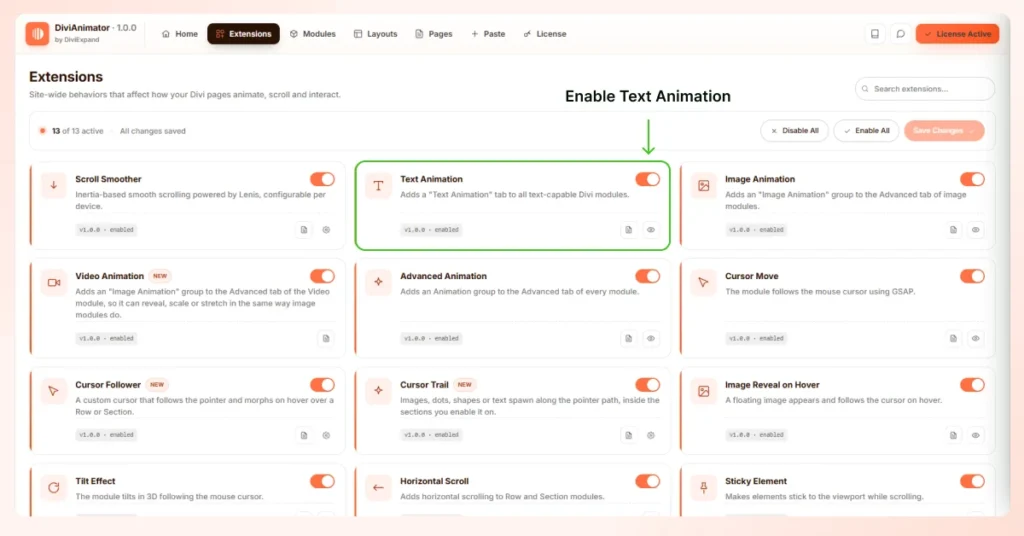
Step 2 — Enable text animation. In the extension settings, find the Text Animation and switch it on.
Step 3 — Select a module. Pick the Heading or Text module holding the line you want to animate. Text animation works best on one strong headline, not every text block on the page.
Step 4 — Choose an effect. Pick from the seven types above based on the result you want — Character or Word for a split-text cascade, Reveal or Move for a clean whole-line entrance, Scale, Invert, or 3D Spin for something with more presence.
Step 5 — Choose a trigger. Match it to placement: On Page Load for a hero above the fold, On Scroll for anything the visitor scrolls to, Play With Scroll for scroll-linked storytelling that scrubs with the scrollbar, and On Hover or On Click for interactive elements the visitor sets off themselves.
Step 6 — Adjust the controls. Stagger matters most for split text: it's the gap between each character or word, and it creates the cascade. Tight reads crisp, wide reads slow. Duration sets how long each piece takes; short feels modern. Delay holds the start so you can sequence effects. Ease shapes the curve, and an ease-out feels natural where linear feels mechanical. Transform X / Y set the starting offset and entrance direction. Text Wrapper controls how the text splits cleanly into characters, words, or lines. Responsive breakpoints let you tune or switch off the effect per device; treat mobile as part of the setup, not an afterthought.
Step 7 — Preview, publish, optimize. Preview in the editor and on a real phone, check the text stays readable and respects reduced motion, then publish. To keep the page fast, animate a couple of key headings rather than all of them.
Best practices
- One animated headline per section, not every line. The effect works by contrast.
- Keep timing tight: a small stagger, short durations, an ease-out curve.
- Match the trigger to position — page load for heroes, on scroll below the fold.
- Split by size: characters for short text, words or whole-line effects for longer.
- Test on a real device and honor reduced motion. Both are non-negotiable.
Common mistakes
- Animating too much. A page where every heading moves buries the one that mattered.
- Poor timing. Overlong durations or a wide stagger turn a crisp effect into a slog.
- The wrong trigger. On Scroll for an already-visible hero either fires oddly or not at all — use page load.
- Every heading treated as special. Repeat the same effect everywhere and it stops meaning anything.
- Ignoring accessibility. Keep the original text intact for screen readers and respect reduced-motion for visitors with vestibular sensitivity.
Why DiviAnimator makes text animation easier
The effects are the same either way; what changes is how much stands between you and the result. Coding text animation by hand means loading GSAP, writing a staggered timeline, wiring a trigger, and maintaining all of it. DiviAnimator turns that into a few choices (effect, trigger, stagger, ease) with a live preview, running on GSAP so the motion stays smooth and made for Divi 5 so it works with the builder. It won't decide what should move; that's still your call. It just removes the friction between deciding and seeing it.
Conclusion
Text animation puts motion where attention already goes: the headline. Keep the timing tight and the effect rare enough that it still means something. Code it with GSAP for full control, or add it visually with DiviAnimator and spend your time on the design instead of the plumbing. Open a layout, pick your strongest line, and animate that one first.
Frequently asked questions
What is text animation in Divi?
Any motion applied to headings or text: fading, sliding, scaling, revealing, or animating it by character or word as it enters view.
Can Divi animate text without a plugin?
Yes for basic entrance effects, which are built in; for advanced motion like split text, staggered timing, and scroll or hover triggers, you need GSAP code or a plugin like DiviAnimator.
What is split text animation?
A type of text animation that divides a line into characters, words, or lines and animates each piece separately with a small delay, so the headline cascades in instead of appearing at once.
Do I need GSAP to animate text in Divi?
You're using GSAP either way for advanced effects. The only question is whether you write the code yourself or let a tool like DiviAnimator run it under the hood.
Is DiviAnimator compatible with Divi 5?
Yes. It's made specifically for Divi 5, and it doesn't support Divi 4.
Does text animation affect SEO?
No, as long as the text stays intact in the markup; just keep the effect light so it doesn't hurt Core Web Vitals.
Does text animation affect performance?
Barely, when it's a short headline animating transform and opacity. Keep it to key lines and test on a mid-range phone.
Can I animate text by characters or words?
Yes. Character animation cascades letter by letter, which is best for short hero lines, and Word animation moves one word at a time, which stays readable for taglines.
Can I control when the animation plays?
Yes. Triggers let you play it on page load, on scroll, scrubbing with scroll, on hover, or on click, so it fires exactly where it fits on the page.
Is DiviAnimator beginner friendly?
Yes — no GSAP or JavaScript needed; pick a module, choose an effect and trigger, and adjust a few sliders while previewing live.


0 Comments